⚡ TL;DR
- CRMLeaf includes 11 project and task automation templates: 7 for projects and 4 for tasks.
- Every rule follows When → If → Then: a create or update trigger, optional AND conditions, and one or more actions.
- Templates handle routine handoffs — kickoff tasks, priority alerts, reassignment notices, and finance prompts — not the whole project.
- None of the templates creates an invoice; a billable-task alert is a prompt for finance, not a bill.
- Rules run only on records saved after activation, with no timers, OR conditions, or deletion triggers.
Project and task automation in CRMLeaf comes as 11 ready-made workflow templates. They react when someone creates or updates a project or task. Each follows a When, If, Then structure: a trigger, optional conditions, and actions such as notifying people or creating a task.
In a service business, work moves through a chain. A lead becomes a deal, a deal becomes a project, managers assign work, staff log time, and finance prepares billing. Delays usually happen at the handoffs. Someone creates a project, but nobody schedules the kickoff. A task turns urgent, but the assignee never notices. Someone marks work billable, but finance hears late.
These templates manage those handoffs. They do not run the whole project. They create the next task or alert the right person at the right moment.
This guide covers how the automation model works, what the 11 templates do, how service firms can use them, and how to set one up.
How does project and task automation work in CRMLeaf?
Each rule has three parts, configured in this order:
- When: pick the record type and the trigger. For projects and tasks, you pick one of two triggers: record creation or record update.
- If: pick “Every record of this type” or “Only records matching conditions”. Conditions combine with AND, so all must be true. There is no OR, so create a separate rule for each alternative.
- Then: pick one or more actions. Options include notify, send an email, create a task, update a field, assign to a user and call a webhook, depending on the record type and your plan.
For update triggers with field conditions, CRMLeaf checks the rule when a watched field changes during a save. A rule that watches Status will not fire again just because someone edits an unrelated note.
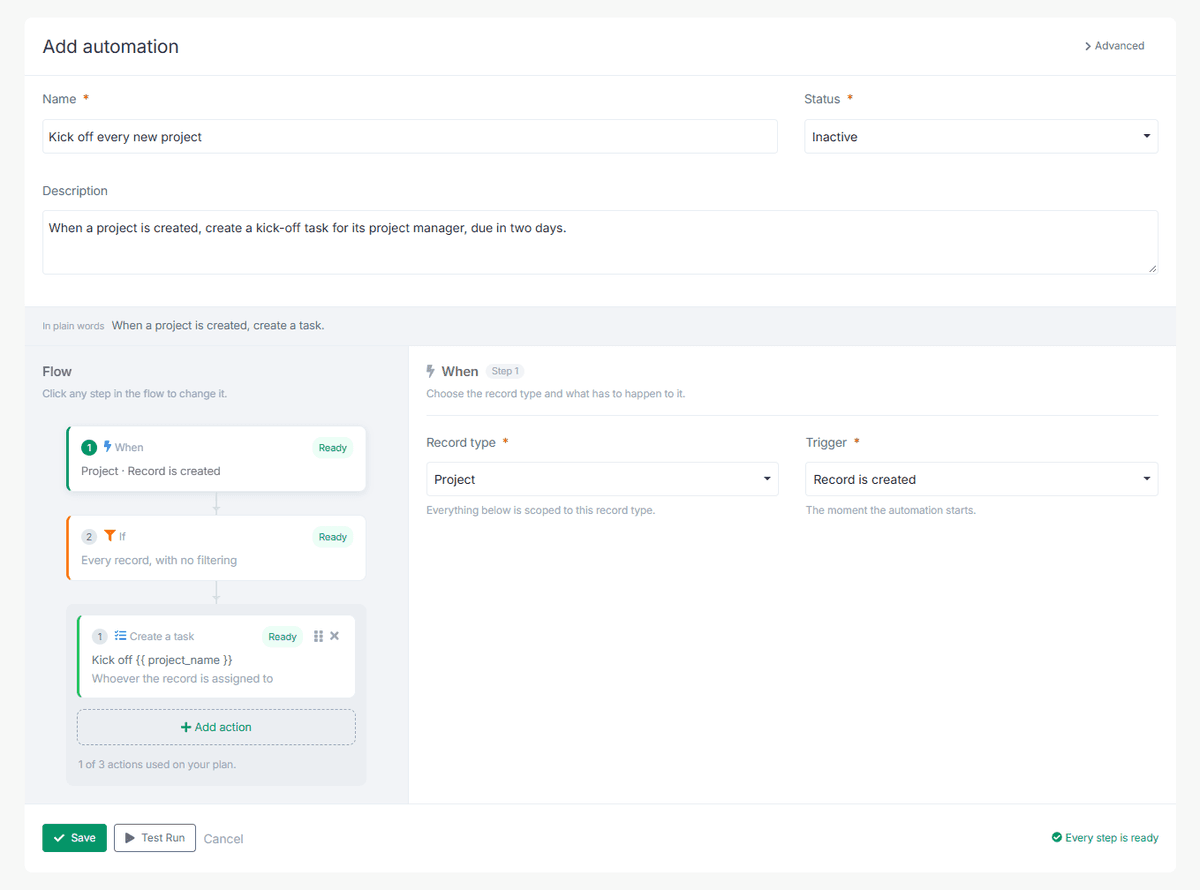
For example, when someone creates a project, CRMLeaf can create a kick-off task for the project manager with a due date two days later. That single action sets up a kick-off task, not a full project plan.
Where does automation fit in a service-business workflow?
Most service firms follow a lead-to-cash flow: the team wins a deal, a project opens, managers assign tasks, staff record time, and finance prepares billing. Project and task automation supports the delivery stage of that flow. It reacts to record changes and prepares a task or notification for the next person.
A separate Deals automation can cover the handoff from a won deal to project setup. Your normal finance process still reviews work and creates invoices, because none of the 11 templates creates an invoice. For the full picture, see our guide to the sales-to-billing workflow.
What are the 11 CRMLeaf project and task automation templates?
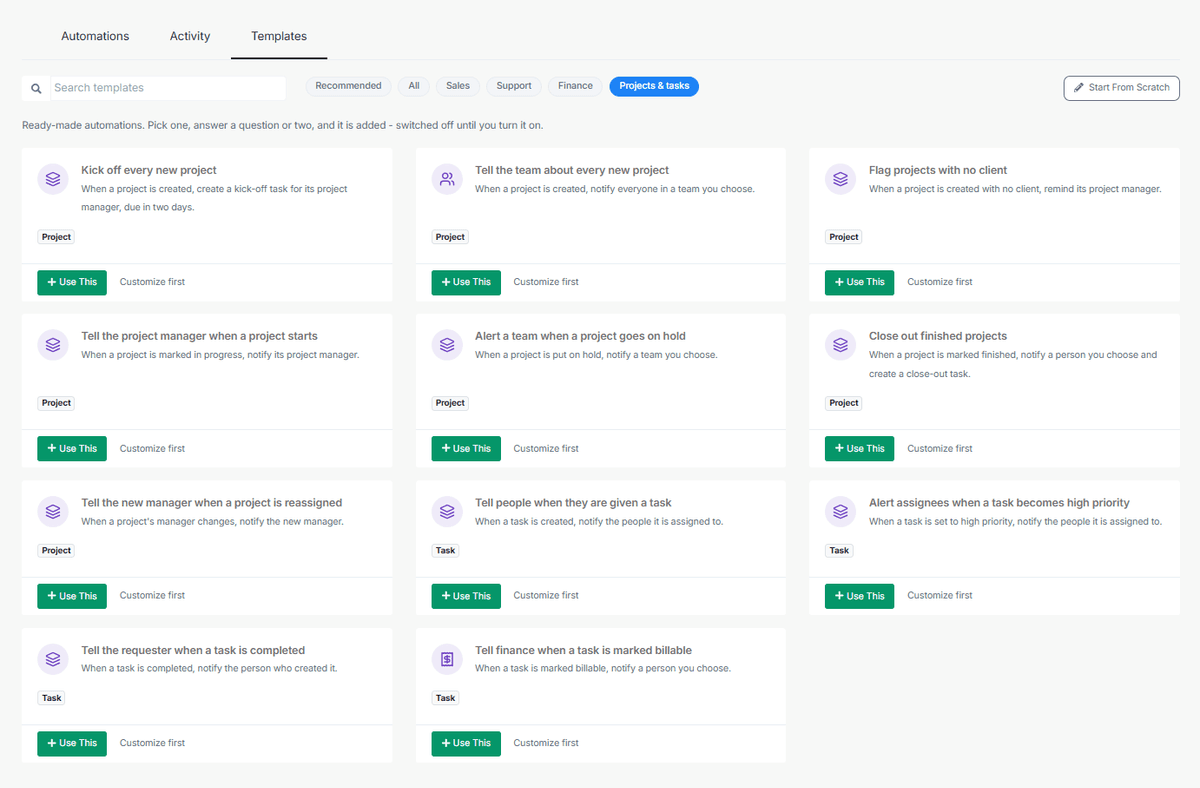
The Templates tab holds 7 project templates and 4 task templates. Filter by “Projects & tasks” to see them. Treat them as starting points, and review the conditions and recipients before you turn one on.
The Projects & tasks filter in the CRMLeaf Templates tab.
Project templates
| No. | Automation Template | Trigger | Condition | Automated Action | What It Does Not Do |
| 1 | Kick Off Every New Project | Project created | Every new project | Create a kick-off task for the Project Manager, due in 2 days | Does not create the complete project plan |
| 2 | Tell the Team About Every New Project | Project created | Every new project | Notify the selected team | Does not assign team members |
| 3 | Flag Projects With No Client | Project created | Client field is empty | Remind the Project Manager to add a client | Does not select or add the client automatically |
| 4 | Tell the Project Manager When a Project Starts | Project updated | Status changes to In Progress | Notify the Project Manager | Does not confirm resources are ready |
| 5 | Alert a Team When a Project Goes on Hold | Project updated | Status changes to On Hold | Notify the selected team | Does not pause tasks or change deadlines |
| 6 | Close Out Finished Projects | Project updated | Status changes to Finished | Notify the selected person and create a close-out task | Does not generate invoices, archive files, or collect feedback |
| 7 | Tell the New Manager When a Project Is Reassigned | Project updated | Project Manager changes | Notify the new Project Manager | Does not transfer every responsibility automatically |
Task templates
| No. | Automation Template | Trigger | Condition | Automated Action | What It Does Not Do |
| 8 | Tell People When They Are Given a Task | Task created | Every new task | Notify the assigned people | Does not confirm task acceptance |
| 9 | Alert Assignees When a Task Becomes High Priority | Task updated | Priority changes to High | Notify the task assignees | Does not reschedule other work |
| 10 | Tell the Requester When a Task Is Completed | Task updated | Status changes to Completed | Notify the person who created the task | Does not confirm the work has been reviewed |
| 11 | Tell Finance When a Task Is Marked Billable | Task updated | Billable field is set to Yes | Notify the selected person, such as the finance contact | Does not create, approve, or send an invoice |
How can service firms use project and task automation?
The examples below are illustrative workflows. They are not customer case studies or measured results.
Consulting firms: from won deal to billable work
A separate Deals rule can create a handover task when a deal moves to Won. When the delivery lead creates the project, the kickoff template adds a kickoff task, and the team template informs the right people.
If someone saves the project without a client, the project manager gets a reminder. Later, a billable task prompts your finance contact to review the work.
When someone marks the project Finished, the close-out template creates a wrap-up task. The finance alert prompts a review of the work; it does not prove billing is complete.
IT services and managed service providers: handling changing priorities
When a task becomes high priority, its assignees are notified. If a project goes on hold, the chosen team gets an alert. Explore how CRMLeaf supports IT and software services teams.
Once the project returns to In Progress, the project manager hears about it. People still need to review dependencies and update schedules.
Creative and marketing agencies: keeping ownership clear
When a project manager changes, the new manager is notified. Task-completion alerts keep requesters informed, and the missing-client reminder catches projects created without a linked client. See how digital and creative agencies use CRMLeaf to keep delivery on track.
Accounting and audit firms: engagement setup and closure
The missing-client reminder flags an engagement with no client link. Billable-task alerts prompt finance to review work in progress. A close-out task reminds the owner to complete the firm’s own wrap-up steps. The template does not archive documents or issue invoices. Learn more about CRMLeaf for accounting and legal firms.
Architecture and engineering firms: phase handoffs
A kick-off task appears when someone creates a project. An on-hold alert tells the team while approvals are pending. If ownership changes, the incoming manager is notified, and billable-task alerts prompt finance according to the firm’s billing process. Read more about CRMLeaf for architecture and engineering firms.
What is the business case for project and task automation?
The practical case is fewer missed handoffs and less reliance on memory for routine updates. These operational benefits are goals, not guaranteed results.
| Manual risk | What a template can do |
| Someone forgets the kickoff task. | Creates it when someone saves the project. |
| The team hears about a new project in a separate message. | Notifies the chosen team on creation. |
| A project without a client goes unnoticed. | Reminds the project manager on save. |
| Assignees miss a priority change. | Notifies them when someone sets a task to high priority. |
| Finance hears about billable work late. | Notifies the person you choose when someone marks a task billable. |
| Closure depends on memory. | Creates a close-out task when someone finishes a project. |
Project managers get fewer manual follow-ups. Resource managers see priority changes and holds sooner. Finance teams get earlier prompts to review billable work. Operations leaders get more consistent kickoff and closure steps.
How to measure impact
Before you enable rules, record a baseline. Useful measures include the time from project creation to the first kickoff activity, the number of projects saved without a client, the time from billable task to invoice preparation, and how long urgent tasks stay unacknowledged. Review the same measures after a month. The Activity tab shows how often rules matched, but a match alone does not prove a business result. You can follow these numbers in CRMLeaf reports and dashboards.
How do you set up project and task automation in CRMLeaf?
You need the Workflow Automation add-on, platform-level automations enabled by your administrator, and the Add Workflow Automation permission. Availability can depend on your plan. The CRMLeaf help centre lists the setup steps.
- Open Automations from the sidebar and select the Templates tab.
- Filter the category to Projects & tasks and choose a template.
- Select Use This and answer the setup questions, or select Customize first to review and edit the rule.
- Use Test Run to check the conditions against one of the five newest records of that type. Test Run checks whether the rule would run. It does not perform the action.
- Review the recipients, conditions and actions, then activate the rule. Templates stay switched off unless you choose Turn on now during setup.
- Create or update a real record, then check the Activity tab for the outcome and action status.
Worked example: create a kickoff task for every new project
| Setting | Configuration |
| Automation name | Kick off every new project |
| Record type | Project |
| Trigger | Record is created |
| Conditions | Every record of this type |
| Action | Create a task |
| Task title | Kick-off |
| Assigned to | The project manager |
| Due in | 2 days |
After activation, create a test project and open Activity. Confirm that the rule matched and that the task exists with the right assignee and due date. A Test Run alone does not prove that CRMLeaf performed the action.
What are the limitations of project and task automation?
- No retroactive runs: rules act on saves made after activation.
- Timers are unavailable: rules run when someone creates or updates a record, so there is no “wait three days, then act” step.
- No OR conditions: conditions use AND logic, so create separate rules for alternatives.
- Deletion is not a trigger: deleting a record does not fire these rules.
- Notifications do not complete work: they do not accept tasks, pause work, move deadlines, create invoices or archive files.
- Plan limits apply: active rules, conditions, actions and record types can depend on your plan and administrator settings.
- Chain limits: CRMLeaf caps chains of automations at three rules, and a rule does not run twice for the same record in one chain.
Best practices and common mistakes
- Activating without review: check the trigger, conditions, recipients and actions first.
- Update triggers without a condition: specify the status or field change that should fire the rule.
- Notifying the wrong person: verify recipients before activating.
- Treating a notification as finished work: track the real project or task status separately.
- Treating a billable alert as an invoice: keep using your normal billing process.
- Trusting Test Run alone: test conditions with Test Run, then confirm the action on a real record in Activity.
- Creating duplicate rules: review the Automations list before adding another rule for the same event.
Make project and task handoffs more consistent with CRMLeaf
Start with the handoff your team misses most often: a kickoff task, a high-priority alert, a reassignment notice or a finance prompt. Test the conditions, activate the rule, and check Activity after the first real run. Then add rules gradually so your team can validate each one. Browse more guides on the CRMLeaf blog. You can also read real workflows in our PSA software use cases.
If you want a CRM and PSA in one place, our PSA software guide shows how the pieces fit, and the Workflow Automation overview covers the rest of the rule types.