
⚡ TL;DR
- Automate repetitive CRM tasks using CRMLeaf Workflow Automation.
- Build workflows with a simple When → If → Then structure.
- Automate notifications, emails, tasks, field updates, assignments, and webhooks.
- Use ready-made templates for common sales, support, finance, and project workflows.
- Track workflow activity to see whether automations matched, failed, were skipped, or completed.
- Create more consistent and structured business processes by automating defined actions.
Managing leads, deals, clients, tickets, tasks, projects, proposals, and invoices often involves the same repetitive actions. Someone creates a record, another person needs to be notified, a follow-up task has to be created, or information needs to be sent to another system.
CRMLeaf Workflow Automation lets teams define these actions once and have CRMLeaf perform them automatically when configured conditions are met. Workflows are built around a simple When → If → Then structure, making it possible to automate routine processes without manually repeating the same steps.
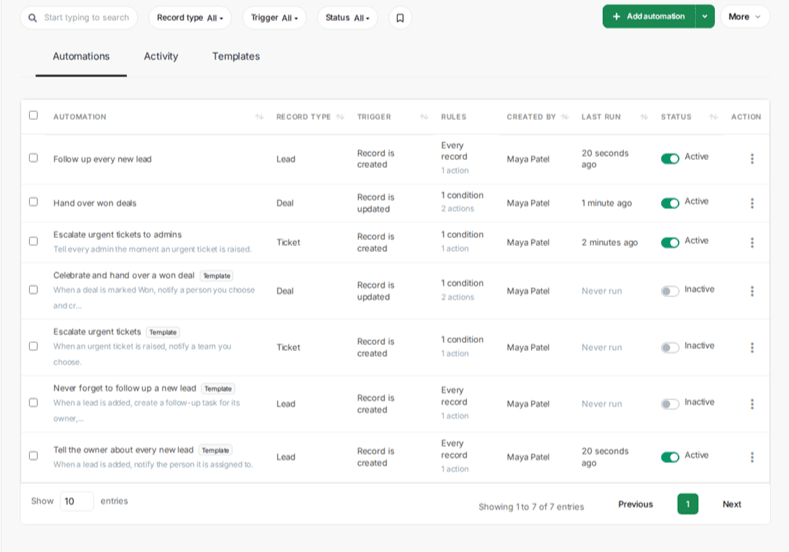
How Workflow Automation Works
CRMLeaf Workflow Automation is based on three simple components: When, If, and Then.
When: Choose the trigger
The When part determines when CRMLeaf should evaluate the workflow.
You can choose:
- A supported record type
- Record is created
- Record is updated
For example:
When: A Ticket is created
This tells CRMLeaf to evaluate the workflow whenever a new ticket is saved.
If: Define the conditions
The If section determines which records qualify for the workflow.
For example:
If: Ticket priority is equal to Urgent
The workflow will only continue when the ticket meets that condition.
Multiple conditions can be used, but CRMLeaf evaluates them using AND logic. In other words, all configured conditions must match for the workflow to continue.
Then: Choose the action
The Then section defines what CRMLeaf should do when the trigger and conditions match.
For example:
Then: Send a notification to everyone with the Admin role.
The result is a simple automation:
When a ticket is created → If its priority is Urgent → Then notify the admins.
This structure makes workflows easier to understand because the trigger, conditions, and actions are defined separately.
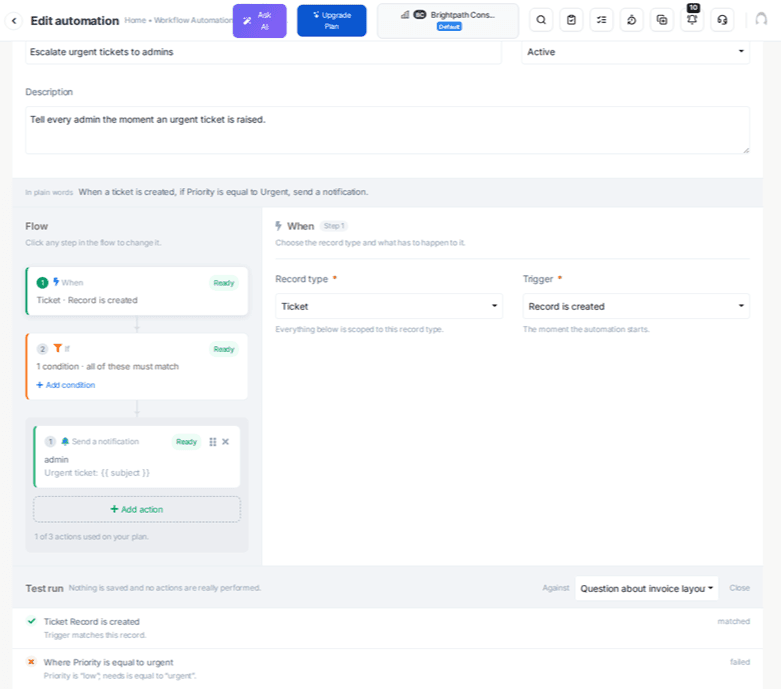
Automation Triggers & Actions
CRMLeaf supports workflow automation across eight record types:
| Record Type | Example Automation |
| Lead | Create a follow-up task |
| Deal | Trigger a handover when a deal reaches a specific stage |
| Client | Send client information through a webhook |
| Task | Automatically update or assign a task |
| Ticket | Notify users about urgent tickets |
| Proposal | Send an email when a proposal is created |
| Invoice | Trigger an email or webhook |
| Project | Perform supported project-related actions |
The exact actions available depend on the record type and the action types enabled by the platform administrator.
Available Automation Actions
CRMLeaf provides several action types:
Send a notification
Notify people inside CRMLeaf, such as the assigned user, record creator, a specific user, or everyone with a particular role.
Send an email
Send an email to a configured address, the record’s email address, or an assigned user.
Create a task
Automatically create a task with details such as its title, priority, due date, and assignee.
Update a field
Automatically update supported fields on the record. This action is available for Leads, Deals, Clients, Tasks, Tickets, and Projects.
Assign to a user
Automatically assign a supported record to a user. This is available for Leads, Deals, Tasks, Tickets, and Projects.
Call a webhook
Send information to another system through a webhook. This can be used when a CRMLeaf event needs to communicate with an external system. Explore the CRMLeaf integration tutorials to connect tools such as Zapier and Slack.
Because action availability varies by record type, teams should configure workflows according to the options available in their CRMLeaf account.
Automation Templates
Not every automation needs to be built from scratch.
CRMLeaf includes ready-made Workflow Automation templates that provide a starting point for common business processes.
Templates contain the trigger, conditions, and actions, while users provide the information specific to their workflow.
Templates can be organized into categories such as:
- Recommended
- Sales
- Support
- Finance
- Projects & Tasks
- Send to another system
This gives teams a faster way to explore automation possibilities before creating their own rules.
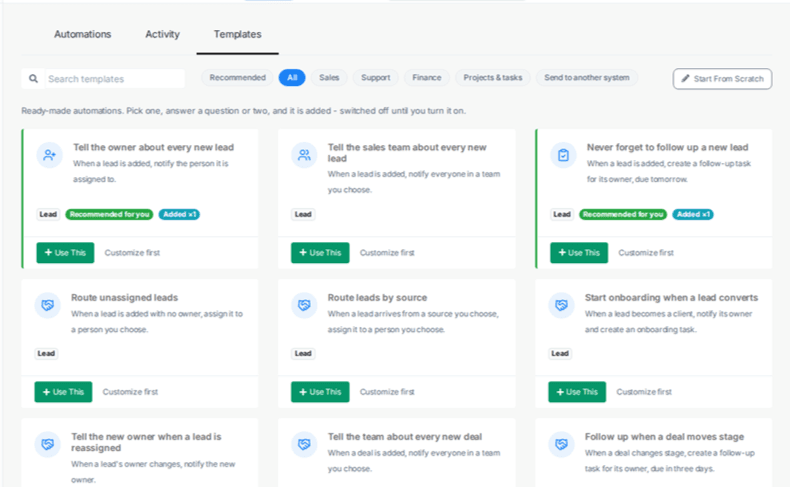
For example, the template gallery includes workflows for routing unassigned leads and sending newly created clients to another system. Templates can also be customized before saving.
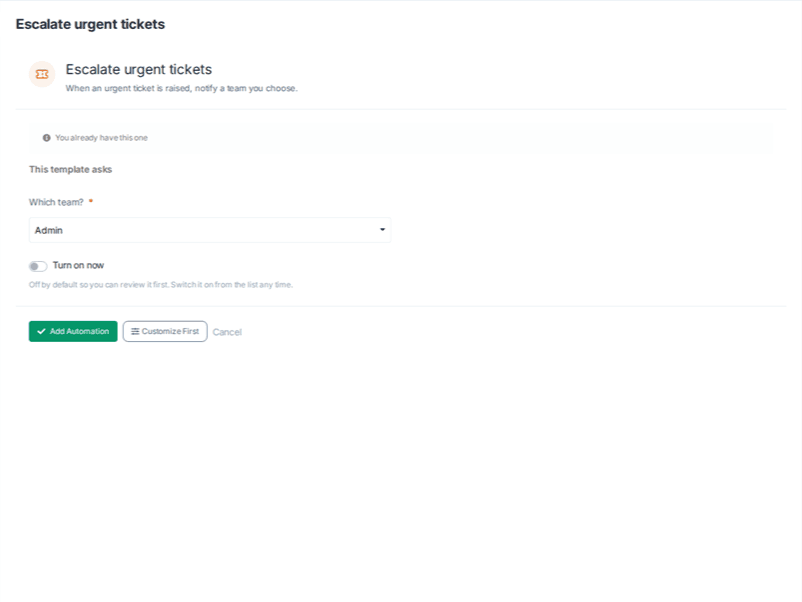
Activity Log: See What Your Automations Did
Creating an automation is only part of the process. Teams also need to know whether the workflow actually ran.
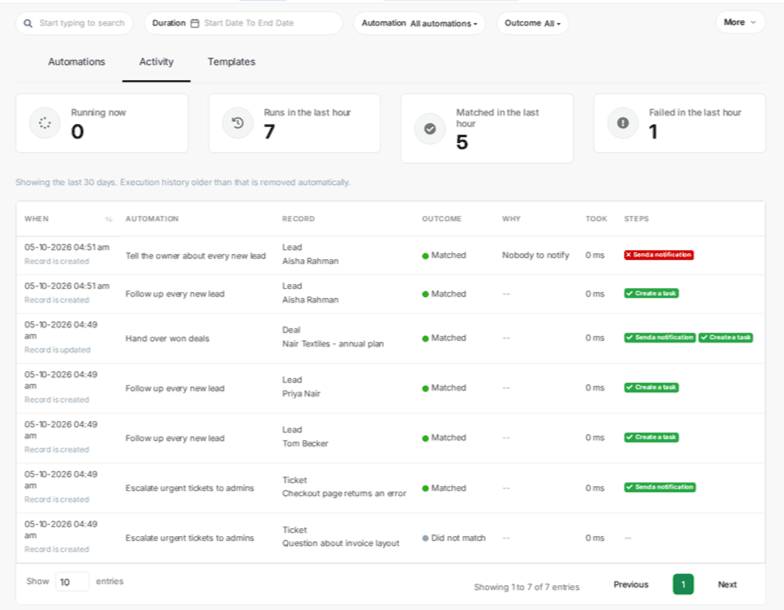
CRMLeaf’s Activity section records workflow evaluations, including cases where a rule did not match the record. Each activity entry can show information such as the trigger, workflow, record, outcome, reason, duration, and action status.
Common outcomes include:
- Matched – the conditions passed and the actions ran.
- Did not match – the workflow was evaluated, but the record did not meet its conditions.
- Failed – the workflow could not be completed successfully.
- Skipped – an action or step was not run.
- Running – the workflow is still being processed.
This is particularly useful when someone asks, “Why didn’t my automation run?”
Instead of guessing, you can check the Activity history to determine whether the workflow was evaluated, whether the conditions matched, and whether an action encountered an issue.
CRMLeaf Workflow Automation Use Cases
The best way to understand workflow automation is to look at practical examples.
1. Notify the team about urgent tickets
A support team can create a rule such as:
When: Ticket is created
If: Priority is Urgent
Then: Notify everyone with the Admin role
This allows the configured notification to be generated when an urgent ticket is created.
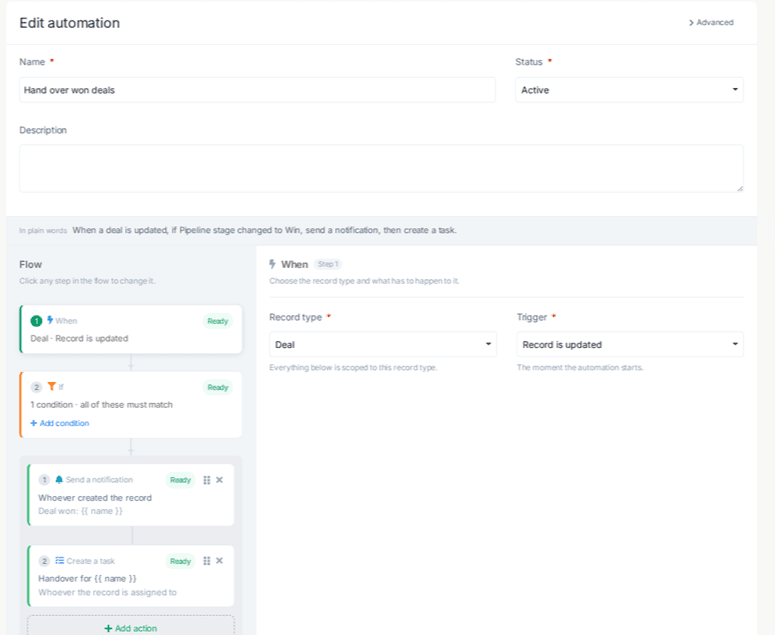
2. Create a handover task when a deal is won
A sales team can automate the transition from sales to delivery:
When: Deal is updated
If: Pipeline stage changes to Win
Then: Notify the deal creator and create a handover task
The guide’s example creates a handover task due in three days. The workflow is evaluated when the relevant pipeline-stage change occurs, rather than every time the deal is edited later.
3. Create follow-up tasks for new leads
A business can configure a workflow that creates a follow-up task whenever a new lead is created.
For example:
When: Lead is created
If: Every record
Then: Create a follow-up task due in two days
This gives teams a way to automatically create the next operational step when a new lead enters CRMLeaf.
4. Automatically assign unowned leads
If a lead is created without an owner, a workflow can identify that condition and assign the lead to a configured user.
When: Lead is created
If: Lead owner is empty
Then: Assign to a user
This can help teams establish a consistent assignment process for newly created leads.
5. Send new clients to another system
CRMLeaf can also call a webhook when a new client is created.
When: Client is created
If: Every record
Then: Call a webhook
The webhook can send selected information to another system through the configured endpoint.
Benefits of Workflow Automation
Workflow automation is most useful when the same action needs to happen repeatedly under predictable conditions.
Reduce repetitive manual actions
Instead of manually creating the same task or sending the same notification after every qualifying event, a configured workflow can perform the supported action automatically.
Standardize routine processes
A workflow provides a predefined process for situations such as new leads, urgent tickets, won deals, or newly created clients.
Improve follow-up consistency
When a workflow is configured to create a follow-up task after a particular event, the task creation becomes part of the defined process rather than relying entirely on someone remembering to do it.
Keep teams informed
Notification workflows can alert the appropriate users when important events occur, such as an urgent ticket or a deal reaching a particular stage.
Connect CRMLeaf with other systems
Webhook actions provide a way to send information from CRMLeaf to another system when a configured workflow is triggered.
These are potential operational benefits based on the capabilities described in the CRMLeaf guide, rather than measured performance claims.
Before vs. After Workflow Automation
| Without a Workflow | With a Configured Workflow |
| A user manually checks for a qualifying event | CRMLeaf evaluates the configured trigger |
| A follow-up task is created manually | A task can be created automatically |
| Team members may need to be notified manually | A notification can be triggered automatically |
| Lead assignment can require manual intervention | Supported leads can be assigned through a rule |
| Information may need to be sent manually to another system | A webhook can send configured information |
| Teams have to investigate whether a rule ran elsewhere | Activity provides workflow execution history |
The important distinction is that CRMLeaf does not automatically decide what your business process should be. You define the trigger, conditions, and actions; CRMLeaf executes the configured workflow when the relevant event occurs.
What to Know Before Using Workflow Automation
Workflow Automation is designed around record creation and updates, so there are a few important limitations to understand.
Existing records are not automatically processed
A workflow does not go back through old records after you create it. It acts on qualifying saves from that point forward.
There are no scheduled or delayed triggers
CRMLeaf workflows run when a record is created or updated. They do not currently provide a “wait three days and then run” trigger.
Conditions use AND logic
If multiple conditions are configured, they all need to match. OR logic is not supported, so alternative conditions may require separate workflows.
Update does not always mean every edit
An update-based workflow evaluates according to the fields used in its conditions. For example, if the condition depends on a deal’s pipeline stage, saving the same deal with only a note change will not trigger that workflow again.
Workflow Automation requires the appropriate setup
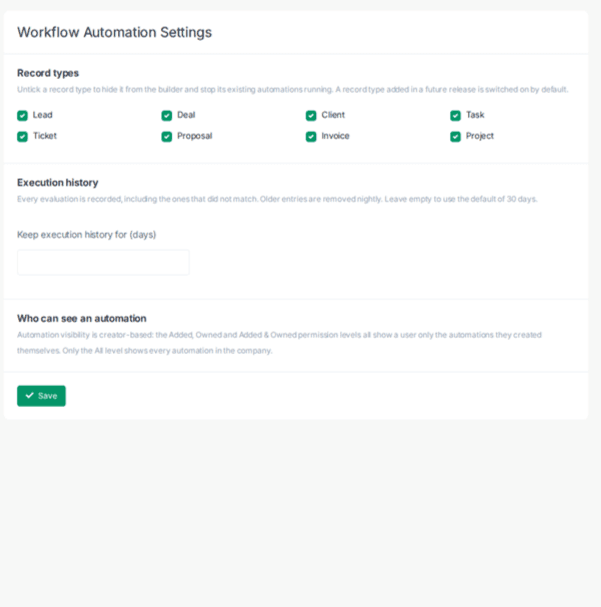
The Workflow Automation add-on, platform settings, available action types, permissions, and relevant modules all affect which automation capabilities are available to a user. The CRMLeaf Help Center covers limits and troubleshooting in detail.
Automate Repetitive Business Tasks With CRMLeaf
Workflow automation is most valuable when a business has repeatable actions that should happen whenever a specific event occurs.
With CRMLeaf Workflow Automation, teams can define the process once using When → If → Then, select the appropriate triggers and actions, and use Activity to monitor what happens. Templates provide a starting point for common workflows, while actions such as notifications, task creation, assignments, emails, and webhooks support different operational processes.
If your team is looking to reduce repetitive CRM tasks and create more consistent processes, CRMLeaf Workflow Automation provides a structured way to turn defined business rules into automated actions.