CrmLeaf

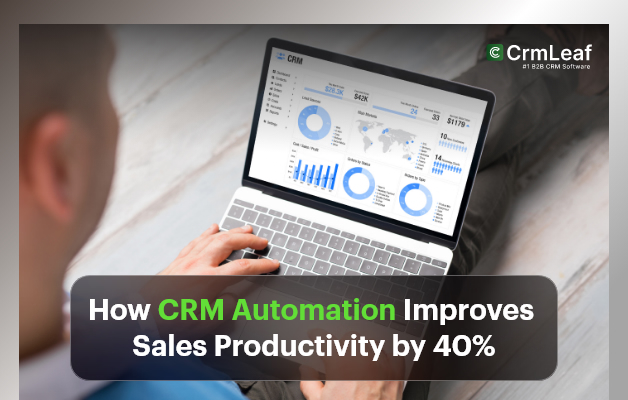
TL;DR: CRM automation saves sales time by handling repeat work: assigning owners, sending emails, creating follow-up tasks and sending alerts. In CrmLeaf this is Workflow Automation, a Premium feature ($29 per user per month, $24.80 billed annually). You build rules in a "When, If, Then" format on records such as Leads, Deals, Clients, Tasks, Tickets, Proposals, Invoices and Projects. This article does not promise a fixed percentage gain, because we have no published study behind the 40% in the title. Plans and prices checked on 4 November 2026.
Many small and mid-sized teams still run sales from spreadsheets, separate apps and manual data entry. That leads to missed follow-ups, slow replies, poor visibility and tired sales teams. Automation does not fix a weak sales process, but it removes a lot of repeat work from a good one.
In this article, you will learn:
- Why automation matters when your team grows
- A step-by-step way to roll out CRM automation
- An illustrative example of how a team might use it
- Which CrmLeaf features and plans you need
The title uses the number 40%. We could not find a named study that supports that exact figure, so treat it as a headline, not a promise. Your own gain depends on your process, your team and what you automate first. The goal below is to help you measure your own numbers.
Why CRM Automation Matters
Customers expect quick answers, and sales teams handle more channels than before. Manual work is slow, and it is easy to make mistakes when people copy data between tools. Automation keeps the routine steps consistent so reps can spend their time talking to buyers.
CRM automation means the system takes an action for you when something happens on a record. For example, when a new Lead is created, the system can assign an owner and create a follow-up task without anyone clicking a button.
Key Challenges of Non-Automated Systems
- Lost time and productivity: reps spend hours entering data and chasing updates instead of selling.
- Data errors: manual spreadsheets lead to typing mistakes, duplicate records and inconsistent customer details.
- Cost and audit issues: when data sits in many tools, it is harder to see who did what and when.
Real-World Impact Examples
The examples below are illustrative, and they are not customer results. They show where teams often feel the pain, and the place automation can help.
- A lead arrives from a web form on a Friday. Without a rule, nobody owns it until Monday. With a rule, it is assigned to an owner and a follow-up task is created at once.
- A proposal is sent and then forgotten. A rule on the Proposal record can create a follow-up task for the owner, if the trigger you need is available.
- An invoice becomes overdue. A rule on the Invoice record can notify the right person when the record changes. Overdue-date triggers are not confirmed.
Disconnected tools make this harder, and joining your sales steps in one place makes it easier. You can read more about that idea in our post on why a growing business needs a unified CRM platform.
How CRM Automation Improves Sales: Framework & Best Practices
A good rollout is planned, not rushed. Use the steps below, and start small.
Map Your Sales Process End-to-End
- Write down every stage, from lead capture to renewal.
- Mark the steps that are slow, repeated or often forgotten.
- Decide which steps a rule could do and which need a person.
CrmLeaf has records for leads, deals, clients, proposals and invoices, so you can attach a rule at the stage where the work gets stuck.
Set Automation Goals
Pick goals you can measure in your own data. Examples:
- Shorten the time from a new lead to the first follow-up
- Reduce overdue follow-ups
- Cut the time between sending a proposal and getting a reply
Write down today's number first. Without a baseline, you cannot tell whether the automation helped. CrmLeaf has a CRM dashboard with open and won deals, items that need attention and overdue follow-ups, and the reports section adds lead and deal reports with average deal size and export.
Start With Quick-Win Automations
CrmLeaf Workflow Automation (Premium) uses a "When, If, Then" pattern. The Then step can send an email, assign an owner, create a follow-up task, send an in-app notification, update a field or call a webhook. This fits three quick wins:
- Automatic lead assignment: when a Lead is created, assign an owner.
- Follow-up reminders: when a Deal is created or updated, create a follow-up task. Check the trigger options on the feature page, because time-based triggers are not confirmed.
- Email alerts: send an email or notification when something needs attention.
Read the workflow automations page for the full list of record types. Note what the feature does not do today: it does not move deals between stages by itself, and it is not triggered by customer behaviour such as email opens. Quotes are not supported yet either. Quick wins build trust, so start with one rule and check the results.
Use Unified Data for Intelligent Decisions
When your leads, deals, proposals and invoices live in one system, reports are easier to trust. CrmLeaf offers a pipeline board with stage totals, lead and deal reports, and a Performance Dashboard on the Premium plan. These show where deals sit, but they do not predict outcomes for you. CrmLeaf does not offer AI forecasting or predictive lead scoring, so keep human review in your forecasts.
If you track work in deal management, the pipeline view gives you stage totals at a glance. Use it in your weekly sales meeting.
Align Teams with Shared Workflows
Sales does not work alone. Billing, delivery and service teams need to know what sales promised. CrmLeaf has projects (Pro plan and above), invoices (Pro), tickets (Premium) and an HRMS module. Shared records and task management reduce handoff delays, because everyone sees the same Deal and the same task list. Check which plan includes each feature on the pricing page.
Train & Empower Users
- Give each role a short onboarding that covers only the records they use.
- Ask for feedback every month and keep a list of rules people dislike.
- Review each rule against real usage, then change or remove the ones that do not help.
Plan your first rule today. The CrmLeaf pricing page shows which plan fits your team. Start a 15-day free trial, no credit card needed, and test one rule on your own pipeline.
Do’s & Don’ts
| Do | Don't |
|---|---|
| Start with one or two simple rules | Automate everything in the first week |
| Measure your baseline before you switch rules on | Trust a headline number instead of your own data |
| Keep a person in charge of each rule | Leave rules running with no owner |
| Check which plan includes the feature | Assume every feature is in every plan |
| Test a rule on sample records first | Send automatic emails to clients without a test |
Expert Tips
- Roll out automation in phases, one record type at a time.
- Review data quality every month, and fix duplicates and empty fields.
- Use the CrmLeaf API (Premium) or the integrations page to connect tools you already use. Check which connectors your plan includes.
Common Mistakes to Avoid
- No agreement between sales, finance and service on who owns what
- Using default templates without editing them for your business
- No review after the rollout
Mini Implementation Checklist
- Map your process.
- Name an automation owner for each team.
- Train the team.
- Launch one rule, then add more in phases.
- Measure against your baseline and adjust.
Customer Success Example
Example scenario (illustrative, not a customer). A small distribution business has slow follow-ups on new leads and manual approvals on purchase orders. The team maps its process, picks one goal (a faster first follow-up) and writes down the current response time. It then sets a rule that assigns each new Lead to an owner and creates a follow-up task. After a month, the team compares the new response time with its baseline and decides whether to add a second rule, such as a reminder on unanswered proposals.
This example has no measured results on purpose. It shows the method: pick a goal, record a baseline, add one rule, measure and repeat. If you want to see real customer stories, visit the CrmLeaf customers page.
Key Takeaways
CRM automation helps when it is planned and measured. With CrmLeaf Workflow Automation (Premium), teams can:
- Reduce repeated manual tasks such as assigning owners and creating follow-ups
- See pipeline and report data in one place
- Keep sales, billing and service on the same records
- Check each gain against their own baseline instead of a headline figure
Move step by step, check which plan includes each feature, and use the free trial to test your first rule.
Sources
- CrmLeaf pricing page (crmleaf.app/pricing), read 4 November 2026.
- CrmLeaf Workflow Automation feature page (crmleaf.app/features/workflow-automations) and the What's New entry for Workflow Automation, 15 September 2026.
- CrmLeaf integrations page (crmleaf.app/integrations), read 4 November 2026.
- No third-party statistic is cited in this article.
Plans and prices checked on the CrmLeaf pricing page on 4 November 2026. Facts checked against CrmLeaf pricing and product documentation.